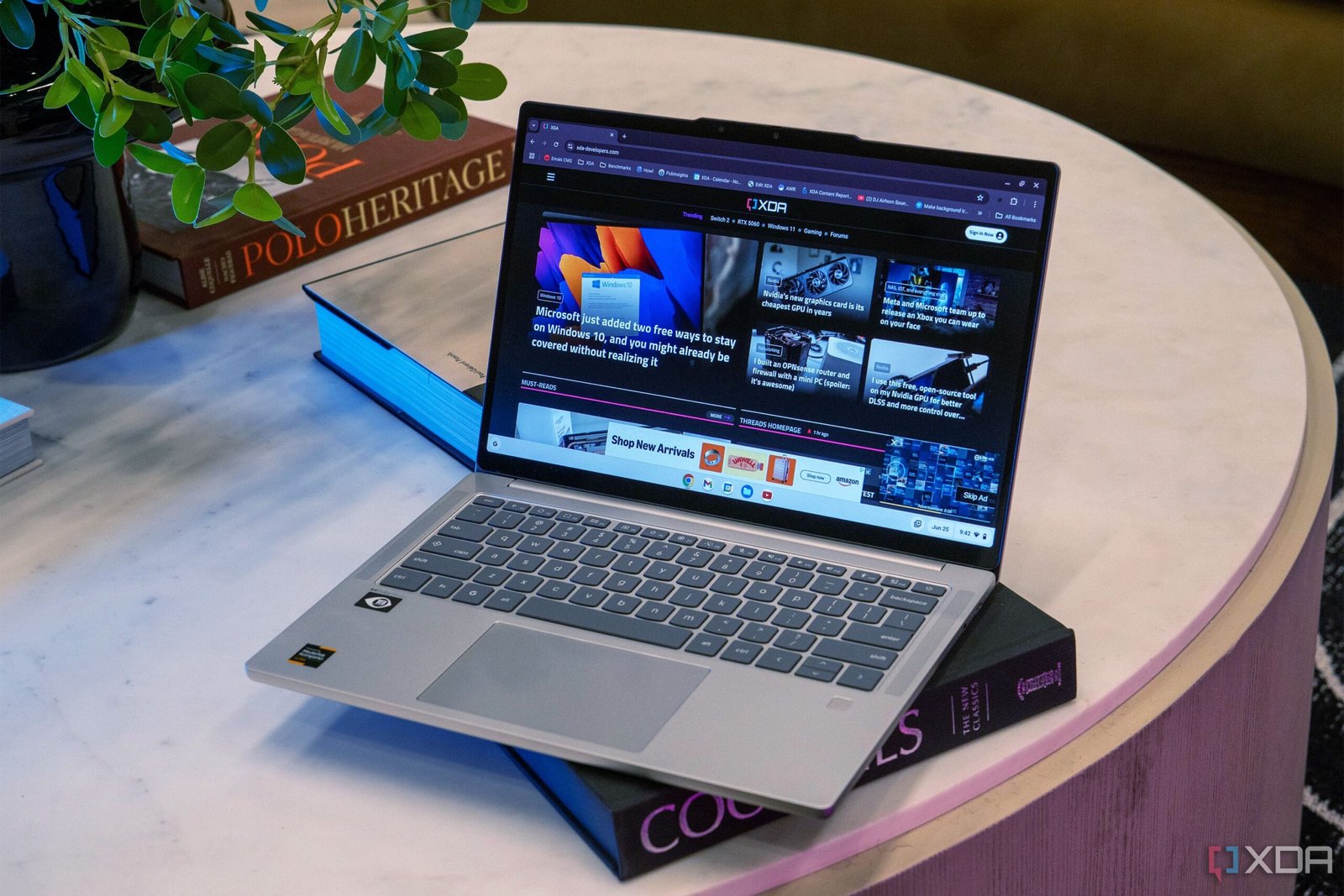
Chromebooks aren’t the device for everyone. ChromeOS is a very limited operating system, but it does have a few standout features that make it a compelling operating system. Unfortunately, for those of us who require more than just web apps, no amount of slick features will make Chromebooks a worthwhile investment.
However, Windows 11 is far from perfect and could learn a lot from Google’s streamlining efforts with ChromeOS. There are a few Chromebook features I’d love to see Microsoft implement in a future version of Windows.

6
The ChromeOS Home Launcher
The Windows 11 Start Menu has been the subject of criticism since 2021, and for good reason. In fact, we’d even argue you should avoid it entirely in favor of the Flow Launcher.
However, if we’re keeping the Windows Start Menu, I’d love to see it look more like the ChromeOS Home Launcher, where it’s a simple app launch window that you can customize to have your most used apps at the top. While the Windows 11 Start Menu isn’t unusable, it isn’t anywhere as helpful as the Windows 10 version.
While you can customize some of the Windows 11 Start Menu, it’s still difficult to streamline.
5
The Quick Insert button
A new keyboard shortcut saves even more time

Quick Insert is a ChromeOS feature that lets you quickly add calendar integrations, emojis, Goolge Drive links, simple calculations, and AI-generated text into any email, note, message, or document on your Chromebook.
Launched in 2024, the Quick Insert button was initially a feature available only on Chromebook Plus models, but it proved popular enough the feature is now available on all Chromebooks. And we’d love to see something similar hit Windows systems.
4
Three-finger tab swipes
Jumping between tabs has never been easier.

Chromebooks let you swipe between open tabs in the Chrome browser, making it even easier to multitask. You no longer need to move your cursor away from what you’re doing to shift tabs, or use a complicated keyboard shortcut. You just swipe across the touchpad with three fingers in either direction to change tabs. It’s a small, simple gesture that can really streamline your workflow.
This three-finger swipe gesture hasn’t yet made it to other versions of the Chrome browser on Windows or macOS, but we’d love to see it implemented across all versions of the Chrome browser.
A multi-finger tab swipe gesture is available on some browsers on Windows and macOS, though some use four fingers instead. Windows does use three finger swipes to return to the desktop or show all open windows, but we’d love to see a tab swipe gesture hit Windows OS.
3
Welcome Recap
It’s like Recall, but without the security flaws.

Credit: Google
AI features designed to help you jump back into work at the start of a new day are more common than ever. But the ChromeOS Welcome Recap provides an overview of your upcoming day as well as a look at where you left off the day before.
Rather than Windows’ complicated Recall feature that snapshots your entire device in order to create a searchable database, there’s no inherent security risk involved with the Chromebook Welcome Recap.
2
Select to Search

Image Credit: Google
While you can use the Start Menu’s Search box to get more information, you need to type in the search terms yourself. ChromeOS lets you simply select text or an image and get information immediately.
So if you see a pair of shoes in an ad, Select to Search can immediately bring up information on where to buy them. When combined with text capture, Select to Search can understand the context and add an event to your calendar or create a shopping list from a recipe. This is super familiar to Android users, as its very much like Circle to Search.
1
Pin files to the taskbar
You can pin more than just apps with Chrome

While Microsoft does have a way to pin a file to your taskbar, it’s a convoluted mess. You need to create a shortcut for the file you want to pin, and then pin that shortcut to the taskbar. This is better than the old version, where you’d need to access the search feature in the Start Menu to find your file, or open up File Explorer to hunt it down.
But it’s still not as good as ChromeOS.
ChromeOS lets you pin a file directly to the taskbar, so you can keep your most frequently referenced files on hand.
Obviously, this is just a wishlist
We can’t control Microsoft or Google, but we can make compelling arguments for fixes to Windows 11 that would make it a smoother, more useful operating system.
While many of us will still be stuck with Windows because we need greater app support than Chromebooks can offer, these six changes to Windows 11 would make the operating system a better experience. And for those who can switch to ChromeOS, these six features are just some of the benefits to the streamlined Chromebook experience.