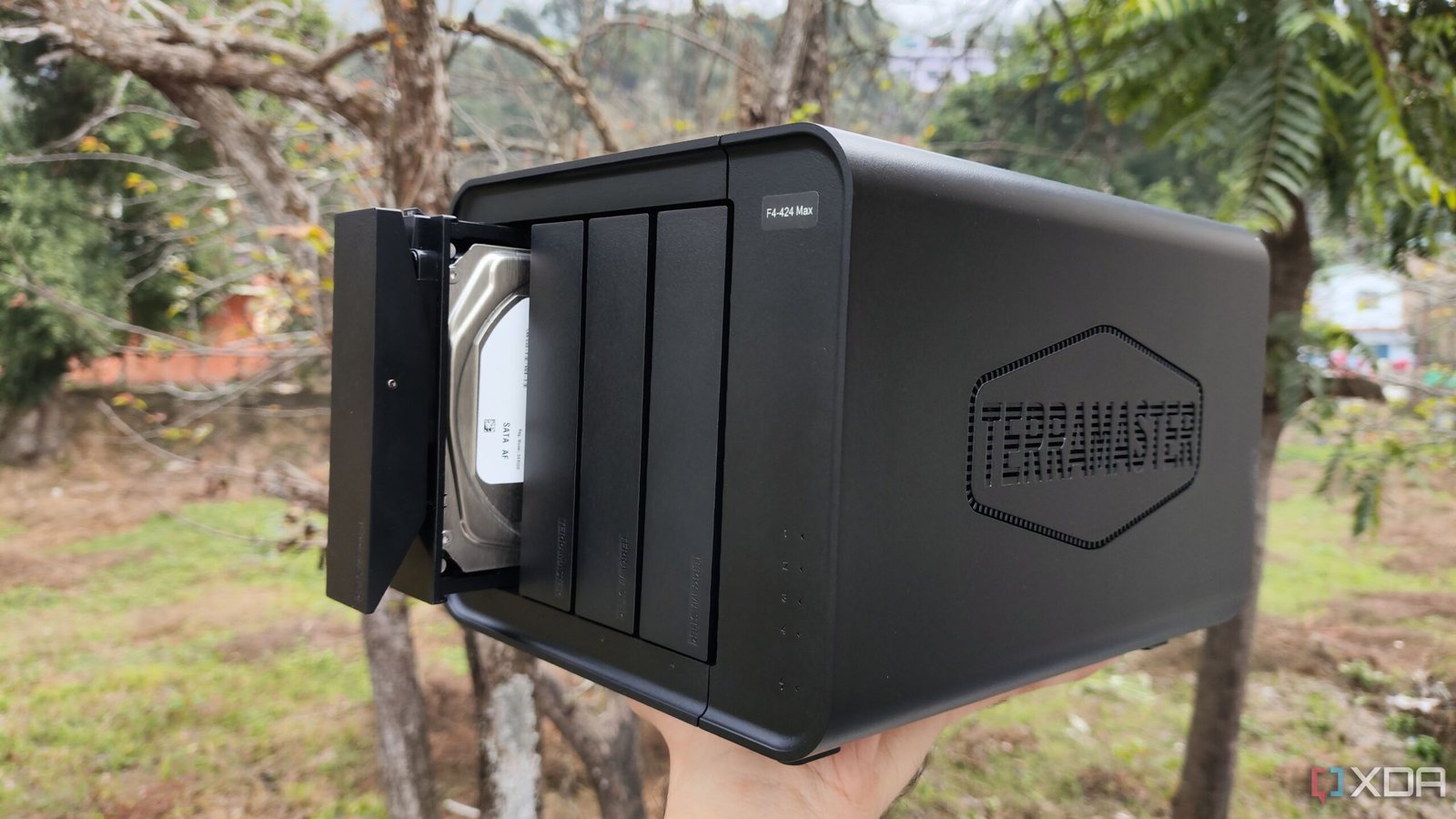
I certainly didn’t expect my first NAS to be a plug-and-play experience. But what I also didn’t realize was that I would need help with so many things. I must admit that it left a solid dent in my former ego, which believed I knew more than I did. While setting it up, I had to Google all the acronyms the UI threw at me, along with all the choices it gave me, which definitely looked important since I knew nothing about them.
So, I ended up researching a lot of the stuff, comparing features, and drawing my own pros and cons to slowly snail past the setup process — just to ensure I don’t make a decision I later regret. Thankfully, I didn’t. And now I’d like to share them with you so that you, too, don’t feel lost while getting your first NAS up and running.
6
What’s the difference between a file system and a volume?
And should I care?
I’ll admit that until that point, I’d used the two terms interchangeably for storage without realizing how different both were. When creating the storage, I was asked to pick a file system — ext4, Btrfs, ZFS, etc. — and a volume type.
It turns out that file systems determine how your data is stored, how quickly you can access it, and what perks (like snapshots) come with it. Volumes, on the other hand, are like virtual containers that manage space across your drives. I ended up going with Btrfs for snapshots and easy recovery. However, it’s not one-size-fits-all, so you can decide what works best for you.

5
If RAID isn’t a backup, then what is it?
What are my backup options?
Whenever I looked up RAID, I kept reading ‘RAID isn’t backup’ everywhere, making me wonder what it really is, then? RAID, or Redundant Array of Independent Disks, is a method to enhance redundancy and prevent drive failures. And it has different levels, depending on your NAS size and requirements.
Since it can’t save you from ransomware and accidental deletes, you will need a real backup strategy. One that includes cloud sync, external drive, or even a second NAS. However, the conclusion is that setting up RAID is not the same as backing up, and it is ideal to set up both.

Related
5 mistakes to avoid when using SSDs in RAID
It’s awesome using SSDs in RAID. Just avoid these mistakes.
4
What is link aggregation?
Can I do without it?
When my NAS threw link aggregation at me, it really sounded like something important; the phrase has a ring to it. More than using it, I just didn’t want to break anything, especially something related to networking. I learned that it simply meant running two Ethernet cables between your NAS and router instead of one.
Think of it as doubling the available lanes on a congested highway to ease the traffic and speed up the cars. In the case of a NAS, data packets are the vehicles using the NAS. For it to work, both your NAS and the network have to support it. While it can be helpful to many users, it’s necessary only if you frequently transfer large files and can easily do without it otherwise.

Related
6 reasons link aggregation is worth setting up for your NAS
If you’re on the fence about setting up link aggregation on your NAS, these reasons might convince you to try it.
3
Why is mapping a NAS so hard?
It was supposed to be easy, I thought
I knew that accessing my files on the NAS wouldn’t be as straightforward as clicking on a shared folder, but it turned out to be trickier than I had initially considered. I had to create SMB shares, set permissions, and manually map the NAS to my Mac and Windows laptops. And it doesn’t help that every OS has a different process.
Access becomes much less intuitive than when I plug a portable SSD into my PC, especially since I have to log into my NAS account every other morning on my Mac. I ended up Googling terms like “guest access,” “persistent mapping,” and “drive letter assignment” to find my way through it. Over time, it sure has become second nature, and isn’t that problematic.

Related
The Windows File Explorer is still so bad when it comes to networked drives — here’s why
File Explorer may not be the best option for accessing networked drives, but there are fixes and workarounds available.
2
How do I set up remote access?
I had to play it safe
I wanted to access my files while traveling. The easy option was to just set up QuickConnect on my Synology NAS and go about it. I tried that too. But the reduced speeds and privacy concerns left a bad taste in my mouth, and I wanted to try the usual way. But port forwarding means diving deep into the router settings and opening specific ports.
A simple mistake in the rather complex-looking process for a newbie could leave me with a compromised system. I had to undergo a comprehensive crash course in DDNS, reverse proxies, and VPN tunnels. I was finally able to set up secure remote access for my NAS, but it still feels like security and convenience are always at war.

Related
I use Tailscale to remotely access my self-hosted services – here’s how
Tailscale provides an easy way to access your home server from external networks
Turns out they don’t work out of the box
Now I realize how wrong I was, but I seriously thought that I just needed to dump my movie collection, and Plex would just know where everything was. Plex needed indexing — something I understood after looking up why things weren’t working. After giving the NAS all the required permissions to scan folders, it was time to get my hands dirty.
I had to organize everything in exactly the right folder-naming format. And if some metadata didn’t register, I’d need to manually rename files and tweak settings for it to work as expected. It’s manageable once you know what to do, but I wish I had known it before I got myself a NAS.

I wish it were easier
No one tells you how much effort it takes to set up a NAS from scratch, especially if you’re someone new to network storage. During my early days, I often found myself neck-deep in tabs with forums, YouTube tutorials, and guides open side by side. But I was much better off in the weeks and months that followed; everything that earlier felt like Greek to me became second nature. Giving your NAS some time and playing around with it — while making sure nothing breaks — gives you the confidence to deal with all its complexities and make the most of it.

- Brand
-
QNAP
- CPU
-
Intel Celeron N5095
- Memory
-
8GB DDR4 (max. 8GB)
- Drive Bays
-
4
- Expansion
-
2x M.2 PCIe 3.0, 1x PCIe Gen 3 x2
- Ports
-
2x 2.5 GbE, 2x USB-A 3.2 Gen 2, 2x USB-A 2.0, 1x HDMI
QNAP’s TS-464 is an impressive four-bay NAS with a striking design, powerful internal specs, and IR support for a remote control. If you’re looking for the best-equipped NAS for running Plex (or other media solutions) without spending a small fortune, this is the NAS for you.