Among several sectors that have benefited from the increasing popularity of AI and Large Language Models (LLMs), programming/coding is one of the most popular ones. LLMs have made it a lot simpler to not only generate code but also debug existing programs. That said, the biggest problem with using LLMs for coding is that most premium tools require expensive subscriptions. Moreover, you cannot provide sensitive information to these LLMs, since they are stored on remote servers. So, if you want a cost-effective solution that also focuses on privacy, your only option is to locally host an LLM to assist with coding.
I was also looking for a similar solution when I realized that locally hosting an LLM for offline use isn’t too hard. Visual Studio Code, more commonly known as VS Code, allows you to set up a local LLM that can assist with generating snippets of code in various programming languages — without sending any piece of information to the cloud or needing a subscription. I’ll run you through the steps to make it simple for beginners or students who don’t have prior experience with using VS Code. The process is applicable on Windows, macOS, and any Linux distro.

Related
I self-hosted this VS Code fork so that I can access it in my browser, and I’ll never go back
Code-Server is perfect for a centralized programming workstation
Installing Ollama
Choosing the right model is important

Before starting the process, it’s advisable to perform the steps on a computer with at least 16GB of RAM and 10GB of free internal storage.
Installing Ollama is the first step to running LLMs locally. It’s a user-friendly tool that simplifies downloading various models. Visit the Ollama website and download the relevant installer for your OS. Follow the prompts to install it on your computer. Then, open a Command Prompt or Terminal window and type the following code to start Ollama’s local server:
ollama serve
It’s now time to download a model suitable for coding. I’ve gone with Code Llama 7B Instruct as it works well for the intended purpose. You can also conduct your own research and download a different model that’s better-suited for your usage. Just make sure you alter the command accordingly. To download it, run the following code in the terminal window:
ollama pull codellama:7b-instruct
Wait for the download to complete. Since the model is quite large, and it’s being downloaded from the internet, the time taken will depend on the speed and quality of your internet connection. Once done, it’s time to move our focus to VS Code.
Using the Continue extension in VS Code
Generate or auto-complete programs
If you haven’t done it already, install VS Code on your computer by downloading the installation file for your corresponding OS. Once in the application, we’ll be using an extension that allows locally-hosted LLMs to assist with coding. Click on the Extensions icon in the left sidebar.

Search for Continue using the search bar and hit Install. Now, it’s time to configure Continue to use Ollama. Essentially, the extension needs to connect to the locally hosted Ollama server to use the downloaded model. Here’s how to go about it.

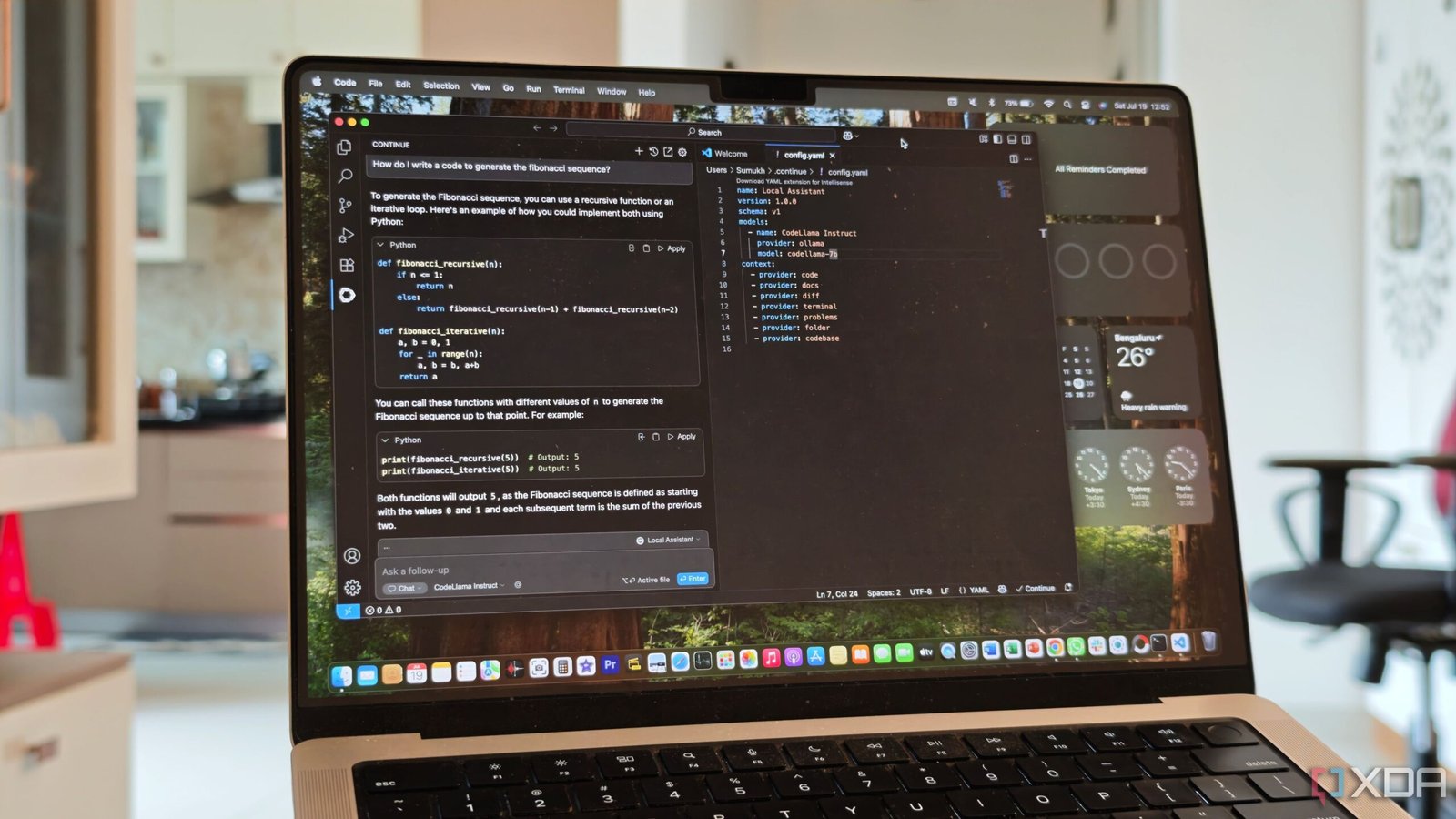
Select the new Continue icon in the left sidebar. Then, click on the Select model button to access the drop-down menu. Choose Add chat model from the options, and select Ollama from the list of providers. As for the model, select CodeLlama Instruct or any other model that you downloaded in the previous step. Finally, click on the Connect button. Then, expand the Models section and look for the Autocomplete tab. Select codellama:7b-instruct from the drop-down menu.
You can now use the Continue tab to type your prompts or ask questions about your code. If you start typing your existing code, it will provide autocomplete suggestions as well. You can press the Tab key on your keyboard to accept the suggestion.

Once you familiarize yourself with the process, you can download and install several different models from Ollama locally to experiment with them. Some models may work better for your requirements, so it’s advisable to carry out some basic research to see which one you want to use.
Coding has never been simpler
If you’re a beginner and you want to learn the basics of coding, you can use your local LLM to generate different pieces of code using prompts in natural language. Then, you can analyze different sections of the code to learn various functions and syntaxes. On the other hand, if you want assistance with writing code to expedite your workflow, the auto-complete feature comes in handy. It not only saves time but also allows you to focus on the logic instead of typing the program. Once you start hosting your own LLMs, there’s no going back. It’s completely free, you don’t have to depend on busy remote servers, and your complete data remains on-device. It’s a total win-win, if you ask me!
