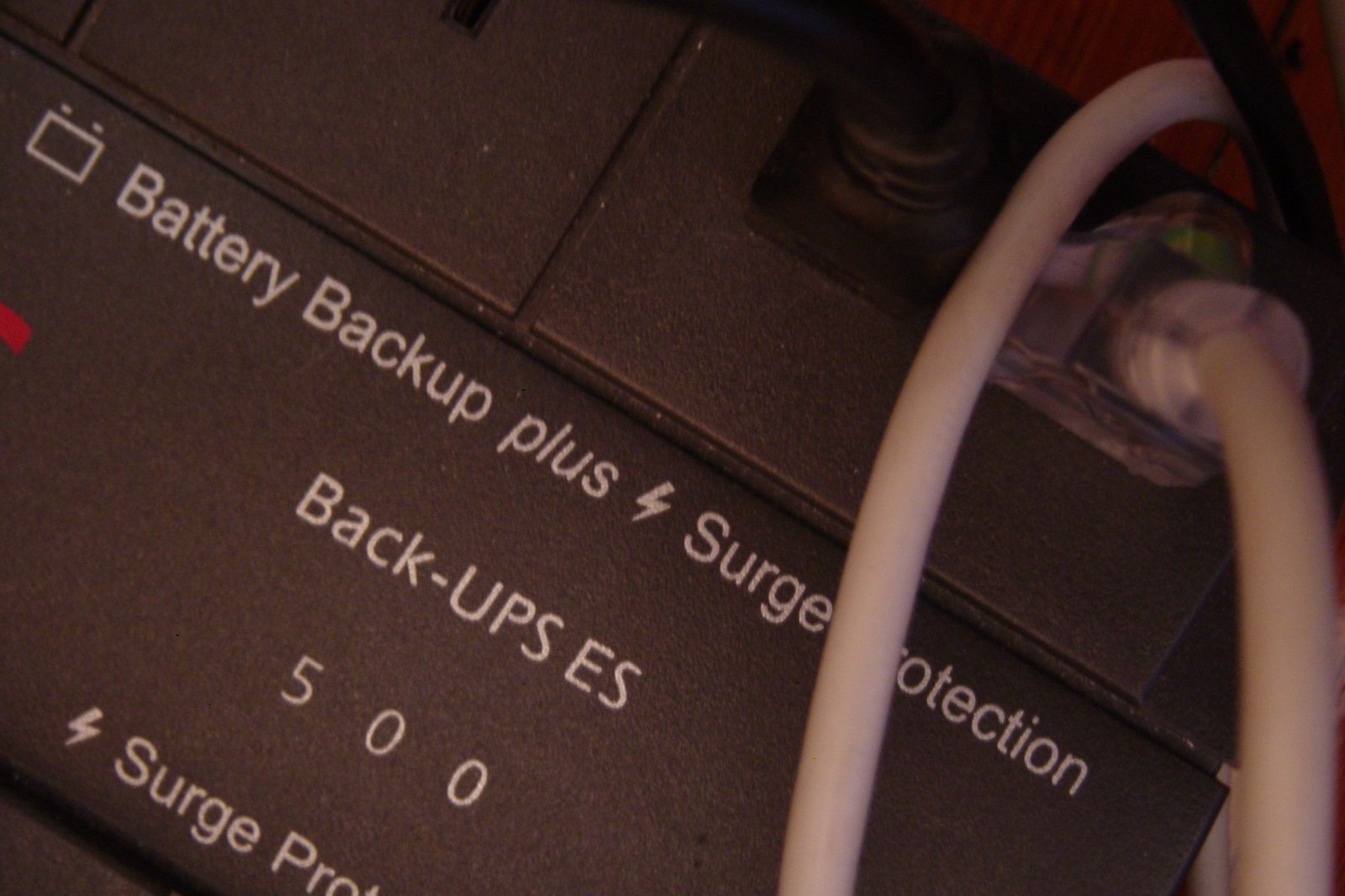
One ever-present danger in the home lab is how to gracefully shut down your home servers when there’s a power cut. Adding a UPS to your setup is one way to ensure you don’t lose data when power goes out, but most UPS models only have one USB connection for sending the shutdown signal, and you might have several devices plugged into it in your home lab.
Plus, if you’re running Proxmox or other hypervisors, you might need to shut down multiple VMs simultaneously. It’s a problem that almost every home labber has to deal with, and it’s a problem that’s long been solved by running a tool to monitor the UPS shutdown signal so that it can be broadcast out to the clients powered by that UPS. One of these tools is called NUT, or Network UPS Tools, and it’s the savior of my Proxmox-based home lab.

Related
4 reasons a UPS should be the next investment in your home lab
A UPS may not seem very appealing at first glance, but it’s a highly useful device for home lab enthusiasts
What is NUT, and why would you use it?
It’s all about making sure your devices know how to shut down gracefully
Home labs don’t have the same access to supplementary and redundant power sources as the data center, so some sort of battery-powered UPS is necessary to avoid data loss when your home loses power. If you’ve only got one server or virtualization host, the single USB connector most UPS models use for signaling is fine. But if you have several virtualization hosts, or other devices, you need a way to get the shutdown signal to the other hosts.
That’s where NUT, or Network UPS Tools, comes in. This operates as a server-client model, where the server runs on the server connected via USB to the UPS, and the client is installed on all your devices (including the one with the server). This means when the power drops, and the UPS kicks in, when it gets to low battery status, it will send out the shutdown command over USB. The server will take that command and send it to the clients, who will turn everything off before you lose data.
It’s not the easiest thing to set up, but it will get you used to editing configuration files, and the end result speaks for itself. Oh, and there’s a Home Assistant add-on for monitoring purposes, and we like to see that from any tool.
Time to drop a NUT on our Proxmox server
Power blackouts won’t make me lose data again

Since I decided to put the NUT server on my Proxmox host, we first need to know which USB port the UPS is on. That’s handled by going into the PVE node and the Shell tab, so we can use the CLI to run the lsusb command. Once we know the [bus] : [device] details for the UPS (for me, it’s :3:2), we run lsusb -v -s 3:2 to find the details of the UPS.
Now to install NUT with:
apt install nut -y
Once that’s finished, we need to run the NUT scanner to get the details we need for the multiple configuration files ahead:
nut-scanner -U
Time for configuration files
We’ve got seven files to edit to get things running, plus a few commands at the end to change the battery percentage that triggers the shutdown.
-
/etc/nut/nut.conf First we make a copy with:
cp /etc/nut/nut.conf /etc/nut/nut.example.conf
Then open the file with any text editor:
nano /etc/nut/nut.confYou’ll see MODE=none in the only uncommented-out line. Change that to MODE=netserver, then save and exit.
-
/etc/nut/ups.conf Again, make a backup just in case:
cp /etc/nut/ups.conf /etc/nut/ups.example.conf
Open the file for editing:
nano /etc/nut/ups.conf
Delete everything then add:
pollinterval = 15
maxretry = 3offdelay = 120
ondelay = 240
And the results from nut-scanner:
[apc]
# APC Back-UPS BGM1500
driver = usbhid-ups
port = auto
desc = "APC Back-UPS BGM1500"
vendorid = 051D
productid = 0002
serial = xxxxxxxxxxxx
Save the file, then test it to make sure you get no errors and it shows a subdriver:
upsdrvctl start
-
/etc/nut/upsd.conf Let’s backup the file before we go editing:
cp /etc/nut/upsd.conf /etc/nut/upsd.example.conf
Then time to edit:
nano /etc/nut/upsd.conf
Delete the contents and replace it with:
LISTEN 0.0.0.0 3493
LISTEN :: 3493
So that the server will listen to all networks.
-
/etc/nut/upsd.users Backup the conf file as before:
cp /etc/nut/upsd.users /etc/nut/upsd.example.users
Open with your fav editor:
nano /etc/nut/upsd.users
Edit and put your own passwords in:
[upsadmin]
# Administrative user
password = ********
# Allow changing values of certain variables in the UPS.
actions = SET
# Allow setting the "Forced Shutdown" flag in the UPS.
actions = FSD
# Allow all instant commands
instcmds = ALL
upsmon master[upsuser]
# Normal user
password = ********
upsmon slave -
/etc/nut/upsmon.conf Backup the file:
cp /etc/nut/upsmon.conf /etc/nut/upsmon.example.conf
Then edit with any editor and replace the contents with (including your admin password):
RUN_AS_USER root
MONITOR apc@localhost 1 upsadmin ******* masterMINSUPPLIES 1
SHUTDOWNCMD "/sbin/shutdown -h"
NOTIFYCMD /usr/sbin/upssched
POLLFREQ 4
POLLFREQALERT 2
HOSTSYNC 15
DEADTIME 24
MAXAGE 24
POWERDOWNFLAG /etc/killpowerNOTIFYMSG ONLINE "UPS %s on line power"
NOTIFYMSG ONBATT "UPS %s on battery"
NOTIFYMSG LOWBATT "UPS %s battary is low"
NOTIFYMSG FSD "UPS %s: forced shutdown in progress"
NOTIFYMSG COMMOK "Communications with UPS %s established"
NOTIFYMSG COMMBAD "Communications with UPS %s lost"
NOTIFYMSG SHUTDOWN "Auto logout and shutdown proceeding"
NOTIFYMSG REPLBATT "UPS %s battery needs to be replaced"
NOTIFYMSG NOCOMM "UPS %s is unavailable"
NOTIFYMSG NOPARENT "upsmon parent process died - shutdown impossible"NOTIFYFLAG ONLINE SYSLOG+WALL+EXEC
NOTIFYFLAG ONBATT SYSLOG+WALL+EXEC
NOTIFYFLAG LOWBATT SYSLOG+WALL+EXEC
NOTIFYFLAG FSD SYSLOG+WALL+EXEC
NOTIFYFLAG COMMOK SYSLOG+WALL+EXEC
NOTIFYFLAG COMMBAD SYSLOG+WALL+EXEC
NOTIFYFLAG SHUTDOWN SYSLOG+WALL+EXEC
NOTIFYFLAG REPLBATT SYSLOG+WALL
NOTIFYFLAG NOCOMM SYSLOG+WALL+EXEC
NOTIFYFLAG NOPARENT SYSLOG+WALLRBWARNTIME 43200
NOCOMMWARNTIME 600FINALDELAY 5
-
/etc/nut/upssched.conf We’re getting close now. Make a backup copy of upssched.conf:
cp /etc/nut/upssched.conf /etc/nut/upssched.example.confOpen the file and replace the contents with:
CMDSCRIPT /etc/nut/upssched-cmd
PIPEFN /etc/nut/upssched.pipe
LOCKFN /etc/nut/upssched.lockAT ONBATT * START-TIMER onbatt 30
AT ONLINE * CANCEL-TIMER onbatt online
AT LOWBATT * EXECUTE onbatt
AT COMMBAD * START-TIMER commbad 30
AT COMMOK * CANCEL-TIMER commbad commok
AT NOCOMM * EXECUTE commbad
AT SHUTDOWN * EXECUTE powerdown
AT SHUTDOWN * EXECUTE powerdown -
/etc/nut/upssched-cmd This file doesn’t always exist, so you can go straight to
nano /etc/nut/upssched-cmd
And write a new file with:
#!/bin/sh
case $1 in
onbatt)
logger -t upssched-cmd "UPS running on battery"
;;
shutdowncritical)
logger -t upssched-cmd "UPS on battery critical, forced shutdown"
/usr/sbin/upsmon -c fsd
;;
upsgone)
logger -t upssched-cmd "UPS has been gone too long, can't reach"
;;
*)
logger -t upssched-cmd "Unrecognized command: $1"
;;
esac
Save it, then:
chmod +x /etc/nut/upssched-cmd
That’s the end of the configuration stages. We can either reboot our Proxmox host, or use the CLI to restart the services now they have correct configuration files:
service nut-server restart
service nut-client restart
systemctl restart nut-monitor
upsdrvctl stop
upsdrvctl start
You can test everything with the following command, that will show you a list of the things being monitored if everything was set up correctly:
upsc apc@localhost
One last thing
The defaults for APC UPS models are way too low for my comfort levels, so we’re going to make the shutdown commands happen much earlier. Use the next two commands in the Proxmox VE Shell, and use the upsadmin and password that we specified earlier in /etc/nut/upsd.users:
upsrw -s battery.runtime.low=600 apc@localhost
upsrw -s battery.charge.low=50 apc@localhost
Time for monitoring our NUT

Home Assistant has a NUT integration, that you can add from Settings > Devices & Services > Add Integration. To connect for monitoring you’ll need to add the IP address of your NUT server, and the user and the normal user password that you set up earlier. That will automatically pull data to your main dashboard, showing you exactly what your NUT UPS server is doing.

Related
Dropping a NUT on my home lab servers made me worry about power outages less
Now that NUT is watching over my Proxmox hosts, I can worry less about losing data. If I add more hosts or need other devices to monitor the NUT server for graceful shutdown, I can add them as client devices so they’re monitoring for the shutdown signal, and will turn off before the UPS battery runs out. And yes, I know that more expensive UPS models can send the shutdown signal to multiple clients, but this way doesn’t cost a thing.